


PC Performance Problems: How to Find Bottlenecks and Keep Your Drivers Updated
Category: SciTech
Share
Archive
Like
A slow or unstable computer can be frustrating, especially when you expect your hardware to handle modern games, creative software, and everyday tasks without problems. Many people immediately think they need more RAM, a faster processor, or a better graphics card. However, hardware upgrades are not always the answer.
Sometimes, the real problem is an imbalance between your PC components. In other cases, outdated or faulty drivers can prevent otherwise capable hardware from working properly. Before spending money on new components, it makes sense to understand what is actually causing the performance problem.
A good starting point is to identify whether your computer has a hardware bottleneck and then make sure its drivers are current. With the right approach, you may be able to improve performance without replacing major components.
A bottleneck happens when one component in a computer cannot keep up with the rest of the system. Imagine a gaming PC with a powerful graphics card but an older processor. The GPU may be capable of producing many frames, but the CPU may not be able to prepare those frames quickly enough.
The opposite can happen too. A fast processor paired with a weaker graphics card may leave the CPU with plenty of unused capacity while the GPU struggles to render demanding scenes.
This does not necessarily mean that a PC is badly built. Every computer has some form of performance limitation depending on the workload. A graphics-heavy game may place most of the load on the GPU, while a simulation or strategy game may depend much more heavily on the CPU.
Understanding which component is limiting performance is therefore more useful than simply looking at specifications.
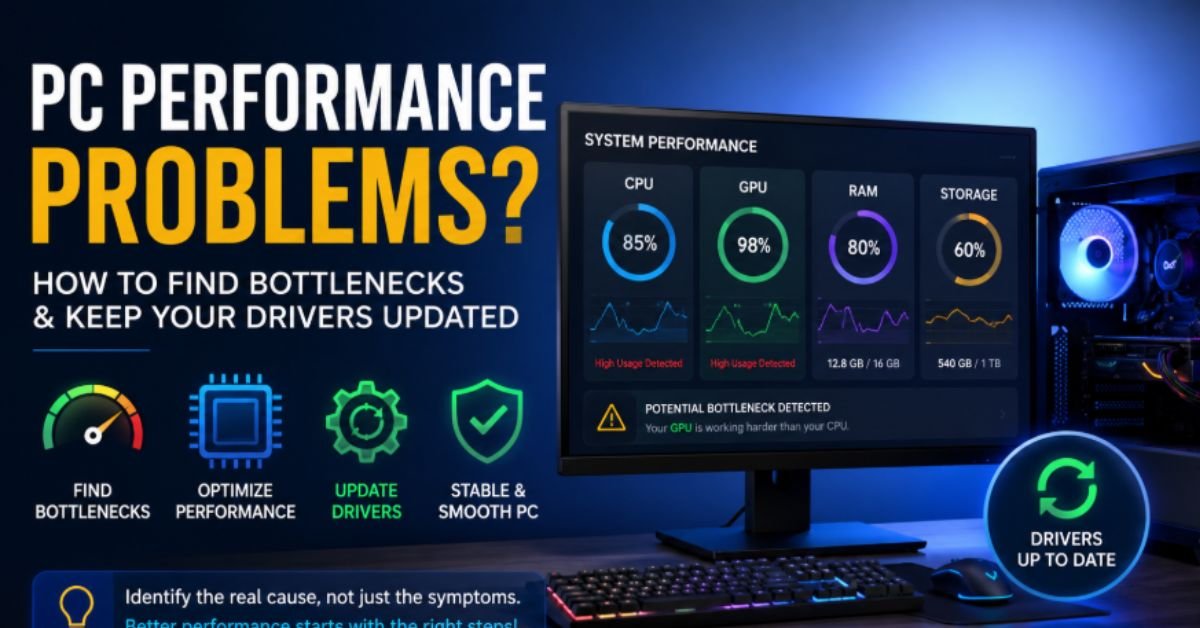
Before buying anything, monitor your CPU, GPU, RAM, and storage usage while performing the task that causes problems.
For example, if a game consistently shows very high GPU usage while the CPU has plenty of available capacity, the graphics card may be the limiting component. On the other hand, if CPU usage remains extremely high while GPU utilization is much lower, the processor could be holding the system back.
RAM usage can also provide important clues. If memory is almost completely occupied and Windows starts relying heavily on virtual memory, applications may become slower and less responsive.
Storage performance matters as well. An older mechanical hard drive can create long loading times even when the CPU and GPU are relatively powerful.
For users who want a quick way to understand how different components may work together, a PC bottleneck calculator can provide a useful starting point. These calculators typically compare the processor and graphics card and estimate whether one component could significantly limit the other under particular workloads.
However, calculator results should not be treated as absolute measurements. Actual performance depends on the game or application, resolution, graphics settings, background programs, cooling, memory configuration, and many other factors.
CPU and GPU bottlenecks can look different in real-world use.
A CPU bottleneck often becomes more noticeable when: Playing CPU-intensive games
Using very high refresh rates
Running simulations
Playing large multiplayer games
Using applications that rely heavily on processor performance
A CPU bottleneck can result in inconsistent frame times, lower maximum FPS, or situations where the graphics card is not being fully utilized.
Lowering graphics settings may not solve this type of problem because reducing visual quality often makes the GPU work less, leaving the CPU as the primary limitation.
A GPU bottleneck is common when playing modern games at high resolutions or demanding graphics settings.
You may notice: High GPU utilization
Lower frame rates
Performance drops when increasing resolution
Better performance after reducing graphics quality
In this situation, the graphics card is simply working near its capacity. That is not necessarily a problem. In fact, a GPU working hard during a demanding game is often completely normal.
The important thing is to determine whether the performance matches what your hardware should reasonably deliver.
Hardware is only part of the performance equation. The operating system needs software called drivers to communicate correctly with components such as graphics cards, network adapters, audio devices, chipsets, and other peripherals.
When a driver is outdated, missing, corrupted, or incompatible, a device may not work as expected.
This can cause problems such as: Game crashes
Audio problems
Network connection issues
Display glitches
Device recognition failures
System instability
Unexpected freezes
This is why it is important to update drivers as part of regular PC maintenance. Driver updates can include compatibility improvements, bug fixes, support for newer hardware or software, and gaming-related improvements.
That does not mean every driver update will magically make an old computer faster. Instead, keeping drivers maintained helps ensure that your existing hardware can communicate properly with Windows and supported applications.
Graphics drivers deserve particular attention for gamers because games frequently receive updates and new titles may introduce technologies that require newer driver support.
NVIDIA, AMD, and Intel regularly release graphics driver updates that can address game-specific bugs, compatibility issues, and performance improvements.
For example, a newly released game may have problems on an older driver version. Installing a newer compatible graphics driver can sometimes resolve crashes, graphical glitches, or unexpected performance problems.
However, it is still wise to use drivers appropriate for your particular hardware rather than installing random packages from unknown sources.
Manually checking every device in Windows can take time. You need to identify the hardware, find the correct manufacturer website, locate the appropriate driver, download it, and install it.
This can become particularly difficult on computers with several devices or older hardware.
IObit Driver Booster is designed to simplify this process. According to IObit's current product information, Driver Booster can scan Windows computers for outdated, missing, and faulty drivers and provide updates from a large driver database. Its current version also supports drivers from major hardware manufacturers, including Intel, AMD, and NVIDIA.
The basic process is straightforward: scan the computer, review available driver updates, and choose which updates to install.
The software also includes tools designed to address certain common device problems, including sound, network, display, and device-related issues.
Although keeping drivers updated is useful, installing every available update without thinking is not always the best approach.
Before making significant changes to your system, consider creating a restore point or ensuring that you have another recovery option available. This is especially important on a computer that you depend on for work or other important tasks.
Driver Booster's documentation states that the software can create a system restore point before driver installation, while its available backup and restore functions can provide additional recovery options.
It also allows users to ignore particular driver updates when they do not want a specific update installed. This can be helpful when an existing driver is working correctly and there is no immediate reason to change it.
Automatic updates can be convenient for people who do not want to regularly check their PC manually.
Driver Booster's Pro version includes an automatic driver update feature that can download or install selected updates while the computer is idle, according to IObit's documentation.
For users who prefer more control, manual updates may be a better choice. You can review what is available and decide which drivers should be changed.
The right approach depends on how comfortable you are with PC maintenance and how critical the computer is to your work.
Drivers and bottlenecks are important, but they are not the only things worth checking.
Too many applications launching with Windows can consume memory and processor resources. Review your startup applications and disable programs you do not need running immediately.
Overheating can cause CPUs and GPUs to reduce their operating speeds to control temperature. This can lead to performance drops during long gaming or rendering sessions.
Make sure your PC has adequate airflow and that dust is not blocking important cooling components.
Browsers, launchers, synchronization tools, and other programs can consume resources while you are gaming or working.
Closing unnecessary applications can free some CPU and RAM resources.
Driver updates are only one part of system maintenance. Windows, games, productivity software, and other applications should also be maintained because newer versions can contain bug fixes and compatibility improvements.
If your storage drive is nearly full, your computer may have less working space for temporary files and other system operations. Keeping reasonable free space is a simple maintenance habit.
Only consider a hardware upgrade after identifying the actual limitation.
If your GPU consistently struggles with the games you want to play, upgrading the graphics card may make sense. If your processor is the limiting factor, a CPU upgrade could be more beneficial.
Similarly, adding RAM can help if your system frequently runs out of available memory.
The key is to avoid upgrading blindly. Spending money on a new graphics card will not solve a CPU bottleneck, and adding RAM will not necessarily fix poor GPU performance.
Use monitoring tools, compare your results with expected performance for your hardware, and identify the actual limitation first.
You do not need to spend hours maintaining your computer every week. A simple routine can go a long way.
Once in a while, check your CPU and GPU temperatures, review startup applications, remove software you no longer use, and make sure Windows is receiving important updates.
It is also worth checking your drivers periodically, particularly graphics, network, audio, and chipset drivers.
If you experience a sudden problem after an update, do not immediately assume your hardware has failed. Check recent driver changes and consider rolling back to a previous stable version when appropriate. Driver Booster includes driver history and restore-related features intended to make this process easier.
PC performance is rarely determined by a single specification. A powerful computer can still feel slow if one component is limiting another, temperatures are too high, software is consuming resources, or important drivers are outdated.
The best approach is to diagnose the problem before spending money.
Start by monitoring CPU, GPU, RAM, and storage usage. Use a PC bottleneck calculator as an initial reference when comparing components, but remember that real-world performance depends on the workload and settings.
Then check your drivers and make sure important hardware is running with appropriate, stable software. Tools such as Driver Booster can simplify the process by scanning for outdated, missing, and faulty drivers and providing a centralized way to manage updates.
With regular maintenance and careful troubleshooting, you can often get more reliable performance from your existing PC without immediately reaching for your wallet. The goal is not simply to have the newest hardware—it is to make sure the hardware you already own is working together as efficiently as possible.
CLICK HERE FOR MORE BLOG POSTS
Emma Clarke is a content writer at Gaukurinn.is, specializing in celebrity news, pop culture, movies, and music. With a strong focus on accuracy and trending topics, she creates engaging and well-researched articles that keep readers informed and entertained.
Emma follows trusted sources and editorial standards to ensure content is reliable, relevant, and up to date. Her goal is to deliver clear, valuable information that readers can trust.
A note on cookies
Newshunt uses essential cookies to keep you signed in and to remember your language and country, so the site works the way you expect. With your permission, we'd also like to use analytics cookies to understand how people use Newshunt and improve it over time.
Accepting only affects analytics. To learn more, view our Privacy Policy or Terms & Conditions.
(0)Comments